How to add your card details to Docue
Instructions on adding your card to the service
1. Log in to the service
Log in to Docue through this link: https://app.docue.com/login
2. Click on the banner or go to settings
If there's a banner when you're logging in to the service, click on "Enter your payment details". If not, click on your name or the company name in the top left corner, and go to "Settings".

3. Redirected to settings
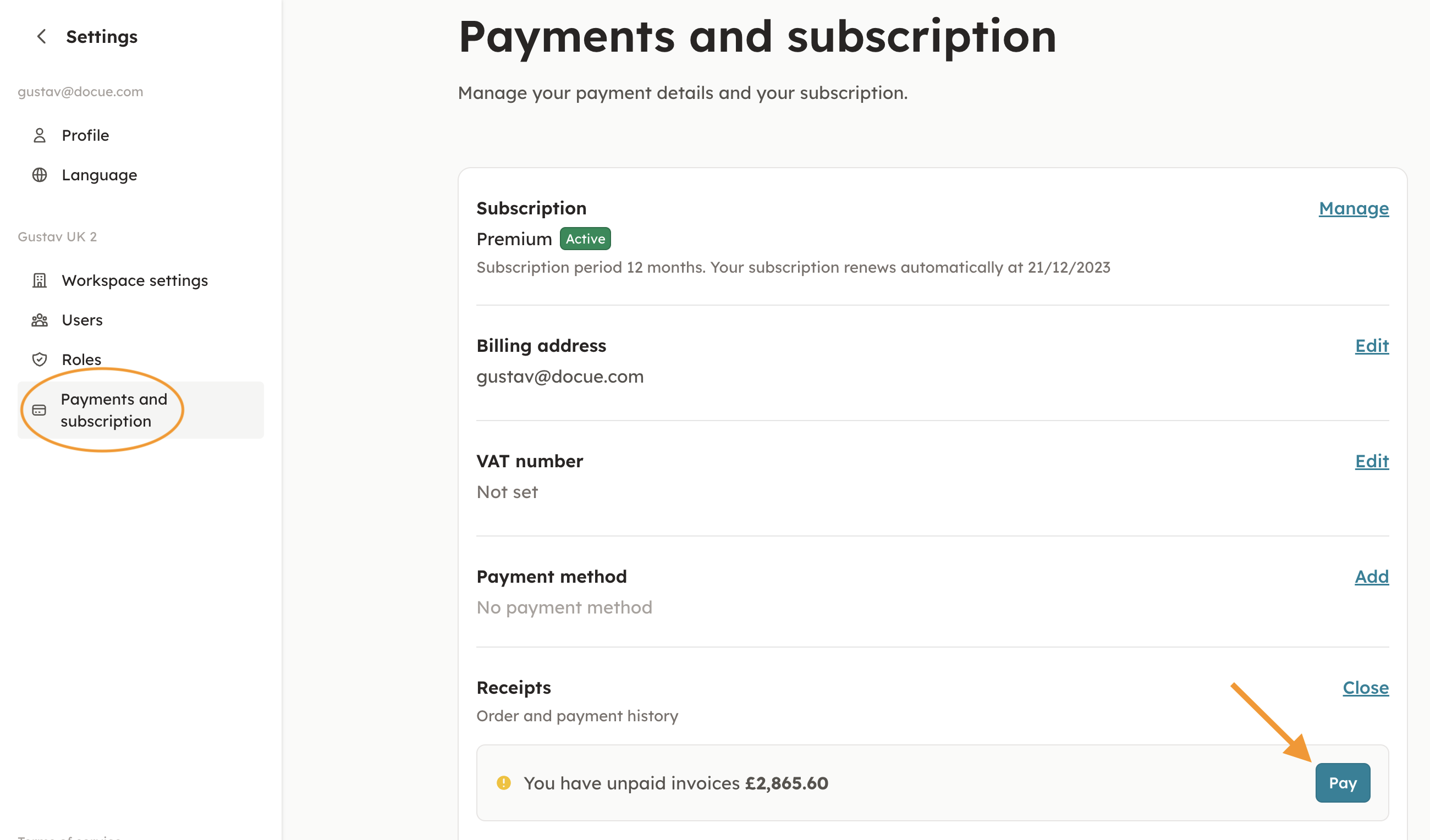
By clicking on the banner you'll be redirected to "Settings" and "Payment and subscription". If you came through settings, go to "Payment and subscription".
4. Put in your card details
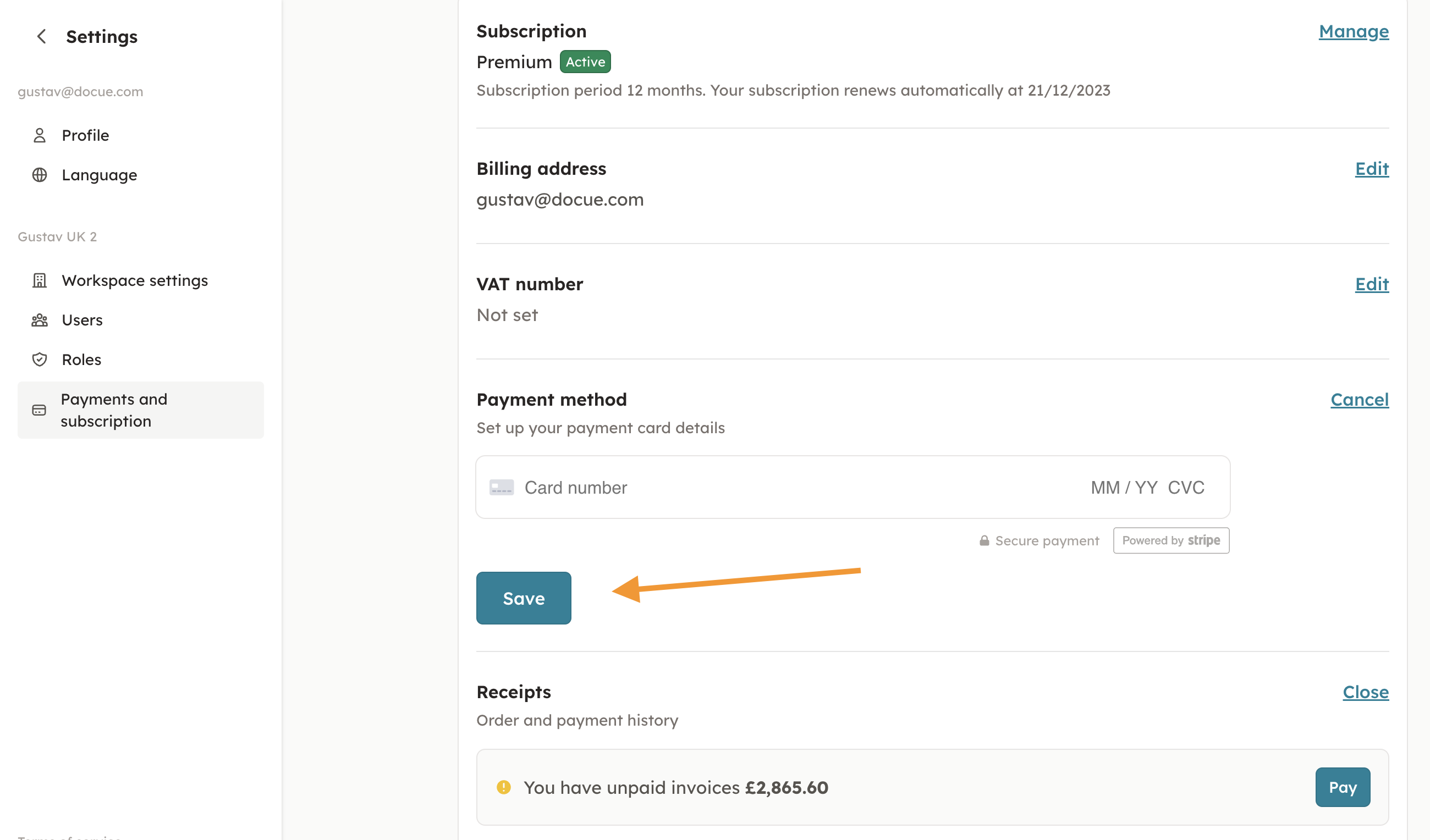
You can now choose to either put in your card in "Payment method" or in "Receipts". When you're finished, click on save.
All done! Welcome to Docue!
Last reviewed: