Importing your own PDF files to the Docue platform (legacy)
How you import your own documents to Docue's archive
You can import an unlimited amount of documents created elsewhere to Docue's safe archive, i.e. "All Documents". For the time being the platform doesn't support file formats that aren't PDF.
Go to "All documents" and choose "Import"
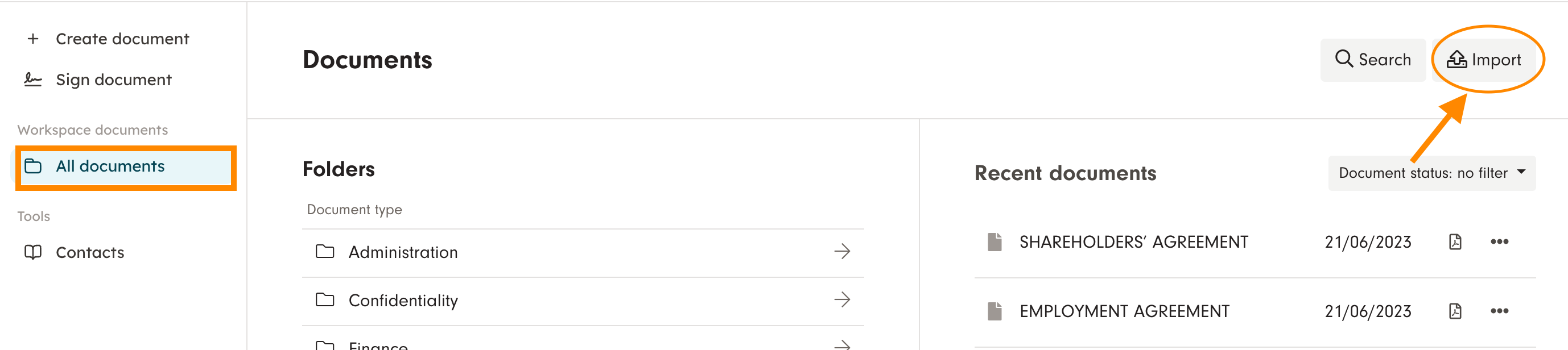
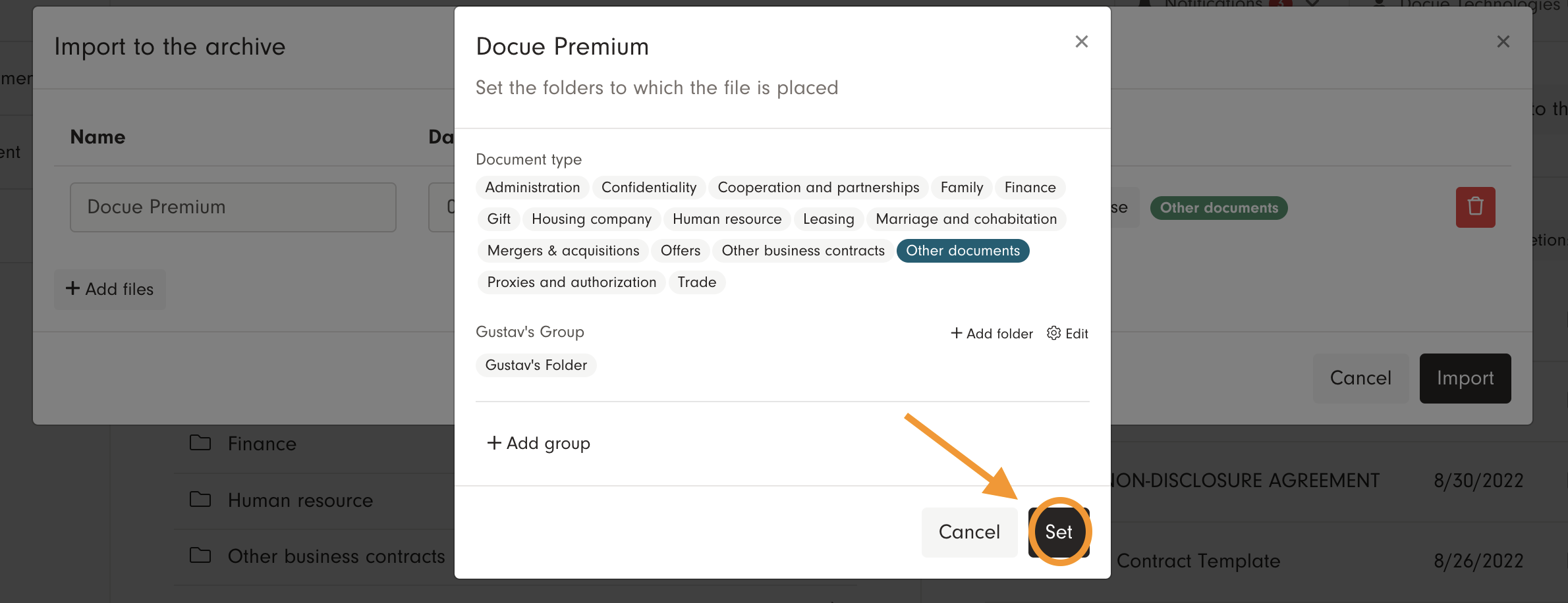
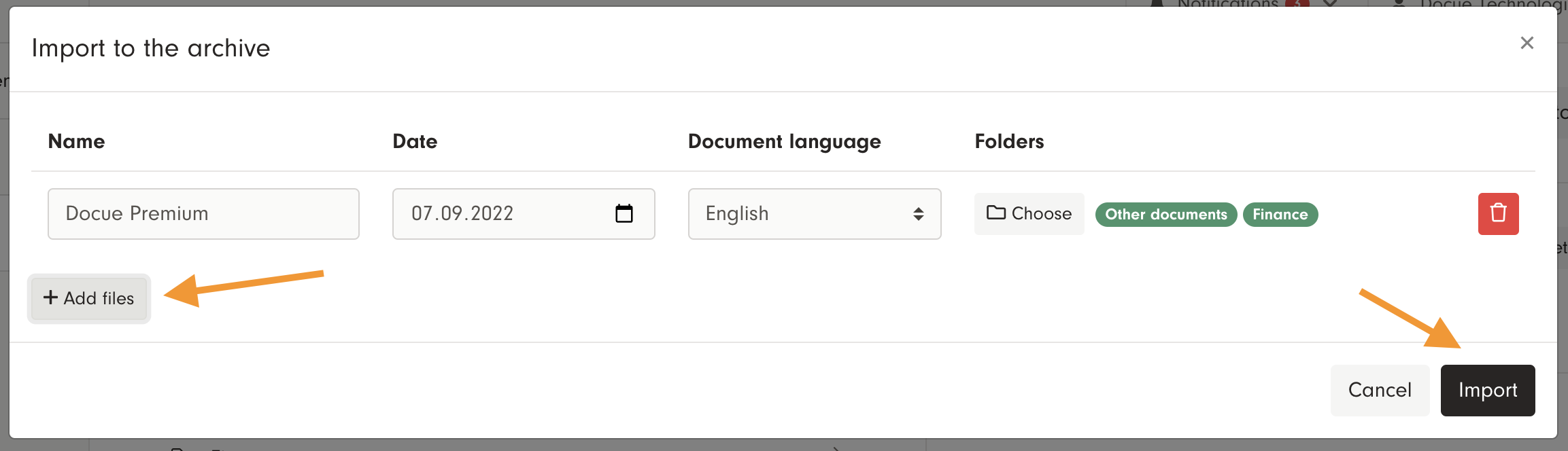
Choose the file on your computer and if necessary change the folder in which the document should be archived. To change the folder, press "Choose" and "Set" to confirm your selection. You can import up to 10 documents at once using the function "Add files". Once you've selected all the files press "Import".
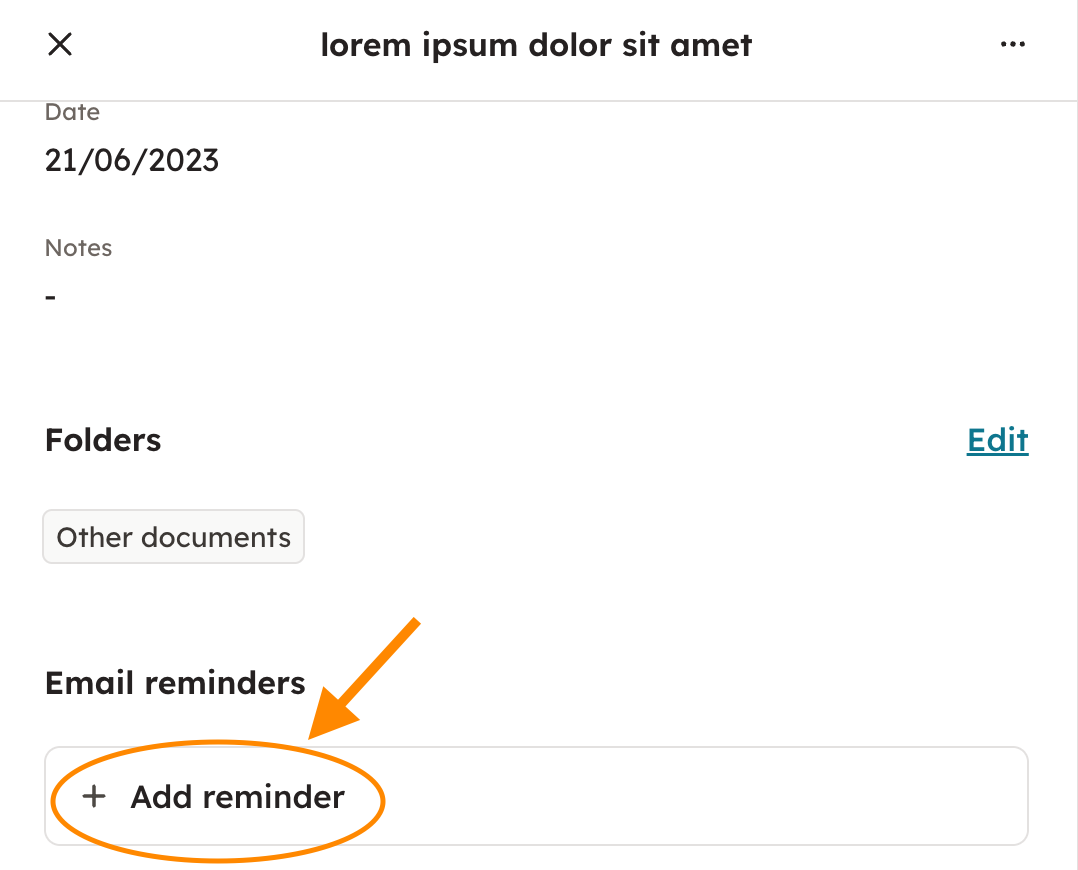
The document has now been archived in the service archive, i.e. "All documents". You can set reminders for imported files by clicking the archive card and then choosing "Add reminder". You can also add your own notes by editing the "Basic info".

Keywords: PDF, own PDF, storage, archive, reminders, notes, archive information, file, files, import, word, power point, excel, picture
Last reviewed: